Sunday, April 5, 2026

REAL-TIME ETL AUDITING VIA VIRTUALIZATION

Instead of waiting for the ETL job to finish and then running a manual "Check," we implemented a Data Virtualization (DV) auditing layer using TIBCO (CIS/TDV).

1. PUSHDOWN AUDIT LOGIC

We used Pushdown Optimization to send validation queries directly to the source and target systems simultaneously.

  • The Process: The DV layer compares the source "Source of Truth" with the target "Loaded Data" in real-time.
  • The Benefit: We identified data truncation, type mismatches, and missing records before the business users accessed the dashboards.

2. AUTOMATED DATA RECONCILIATION

We architected a "Virtual Audit View." This view performed a Semijoin between the source and target keys to highlight orphans (records that failed to load) without moving millions of rows into a middle-tier server.

THE RESULT: 100% DATA CERTAINTY

By moving from manual sampling to automated, virtualized auditing:

  • Identification Time: Errors were caught in minutes, not days.
  • Operational Efficiency: Reduced the need for "Data Fix" tickets by 40%.
  • Trust: Engineering and Finance teams gained 100% confidence in the automated pipelines.

​I help enterprises build "Self-Auditing" data ecosystems.

  • ETL/ELT Auditing: Real-time validation of your data pipelines.
  • Compliance Frameworks: Ensuring data integrity for global standards.
  • Virtualization Strategy: Implementing TDV and IBMDV for proactive monitoring.

The Data Virtualization Playbook: How I Scaled AstraZeneca’s Clinical Trials Hub

THE PROBLEM: DATA LATENCY

In large enterprises, data is often stuck in "Silos." During my fulltime consulting for AstraZeneca, we faced a major bottleneck: the Clinical Trials Hub. A single report required joining data across different database servers, taking over 2 HOURS to execute. Caching Failures, Indexing Mayhem, Refresh Dependency Problems:

THE SOLUTION: PUSHDOWN & SEMIJOIN OPTIMIZATION

Instead of moving massive amounts of data—which causes network congestion—we implemented a combination of Pushdown Optimization and Semijoin logic using TIBCO Data Virtualization (TDV).

1. PUSHDOWN OPTIMIZATION (THE "INTELLIGENT" MOVE)

Most systems pull raw data to a middle server to filter it. This is inefficient. With Pushdown Optimization, we "pushed" the SQL logic (Filters, Joins, Aggregations) directly to the source database.

  • Result: The source database processes the data locally and only sends the final, filtered result back. This eliminates 90% of unnecessary network traffic.

2. THE SEMIJOIN STRATEGY

When joining a small local table with a massive remote table:

  • ​We identified the unique keys in the small "driving" table.
  • ​We sent only those specific keys to the remote "large" database.
  • ​The "Large" database filtered the data at the SOURCE using those keys.

THE RESULT: 60X PERFORMANCE GAIN

By combining Pushdown logic with re-engineered joins, we reduced the execution time from 2 HOURS to just 2 MINUTES. This allowed for real-time global collaboration on vaccine and clinical trial data across developed nations.

I help organizations bridge the gap between legacy systems and modern insights without the cost of massive data migrations.

  • Performance Audits: Identifying "bottleneck" queries.
  • Architecture Design: Implementing Pushdown & Semijoin strategies.
  • TIBCO (TDV) & IBM (IBMDV) Consulting: Upskilling your engineering teams.

Tuesday, April 15, 2025

OpenAI of Databases: Memory is cheap, Processing is Costly...

           As organizations gear up to implement Data Governance, Master Data Management and Meta Data Management Databases should AI themselves. Memory is cheap so think of every SQL Query being tracked in a central repository and so the unique row identifier of the SQL Query (DML and DQL) is stored in-memory. Irrespective of the number of joins, number of where conditions, analytic functions and so on.

Kind of Confusing ain't it. Let me explain. Think of this SQL Query. 

SELECT department_id, last_name, salary, RANK() OVER (PARTITION BY department_id ORDER BY salary) RANK FROM employees WHERE department_id = 60 ORDER BY RANK, last_name; 

              Obviously traditional databases would suggest to bitmap index deptartment_id column looking at cardinality for faster access. Indexing is nothing but storing the exact location of the row in memory (Data Object, Data Block, Data File and so on). Online Indexes are rebuilt online while the DDL is performed without the need for a DBA to rebuild indexes. 

        Now think of this. If the above SQL's result set originating rowid's (Employees Table Department No 60 as well as RANK function) is pre-populated in memory all the SQL Engine has to do is deal with rowid's for future instances of the same SQL Query. 

             In case of the above query when there is an update of an employee's department number all the SQL Engine has to do is update the SQL's result set rowid's (DML of rowid's for all SQL Query References that are stored in memory). Future instances of the same SQL Query will be rowid's processsing from memory. This will pave way for Real-Time ETL as well. Most importantly, OLTP to OLAP and OLTP DML resulting in rowid updates in memory that makes OLAP Querying Real-Time at the instant updates that flow from the OLTP System.

            Think of Mergers, Acquisitions and the amount of efforts spent in integration. Also think of Hyperlocal delivery where one warehouse can willfully work with multiple partners.


Until next time OpenAI of Databases: Memory is cheap, Processing is Costly...

Hacking 101

Why Reverse Engineer Secure Hash Algorithm (SHA-128, SHA-256) when you can replace SHA in the Database at will and Login for any user to perform Hacking.

Make way for Real-Time ETL or suffer through media hatred both The USA and INDIA...

Tuesday, May 23, 2023

SEMI-JOIN A Beautifully Architected Algorithm by TIBCO.

 An algorithm that is so amazing and felt like a hack in Data Virtualization.


A query in the clinical trials data of Astra Zeneca was taking around 2 hours to execute and a lot of caching errors.

It was called the clinical trials hub and I was tasked to optimize it. Semi-Join, Multi Table cache refresh along with drop and recreate indexes, the execution time of the refresh was 2 Minutes.

20 seconds - Execution of Query.
The rest of time - Insertion.

I was amazed because it had been long time since I got my head to work again but something kept running in my mind.

What if I would like to build something superior than the semi-join?

I would have to keep thinking for ever.

When there are two tables that are to be joined from Two Different Databases (Different DB Servers), SEMI-JOIN will convert the parent query in such a way the IN CLAUSE is re-written and the FETCH happens from a Single DataBase Server. I do not need to explain more as a person familiar with SQL will understand how this JOIN Algorithm works. 

---------------------------------------------------------------------
The above efforts have led to Developed Nations collaborate on Clinical Trials and share Clincial Trials information in a common repository. Meaning to say, AstraZeneca is ready for Vaccines for many diseases because of my efforts specifically this Semi-Join SQL Query in Tibco Data Virtualization.

Wednesday, May 18, 2016

Connecting to HIVE (v0.9) from CIS v6.2.6

Hi,

On popular demand I am writing this post on how to connect to HIVE from Cisco Information Server.

We are going to see how to connect to HIVE v0.9 pre-configured on the cloudera vm (v4.21). I know it is an old version but it does the job. I assume you have gone through the articles in this blog and you have an initial understanding of the CIS workflow (Introspect, Model, Publish).

Also, creation of a database/table and insertion of data into the HIVE tables is not a part of this post.

I have created a database called "realty" and also created a table called "listings". Loaded data into the listings table with 6 records. Issued the select * from listings table from the HIVE prompt and could retrieve back the results. Screenshot below:


Now the next part is to start the HIVE thrift server by issuing the following command from the shell prompt:


NOTE: After the Hive Thrift Server is started you should not close the shell window on which the Thrift Server was started. When you interact with the Hive server from CIS you will get messages from the prompt about the ongoing events (Clients to Hive Thrift Server).

Now we can move to CIS to configure the data source and test the querying.

Create a datasource in CIS, selecting the (Hive 0.9.0) as the datasource adapter:


Click Next and provide the server IP Address of the Cloudera VM and give the port as 10000. Change the database name to your HIVE Metastore database (realty in my case) and hive Create and Introspect.


We can see the listings table and can add it to the CIS workspace.


Now the final step is to query the listings table in CIS:
You can do a right click on listings and hit show contents:
it will display the 6 rows in the table as below:


Now this table can be queried and views/web services can be created on top of this introspected listings table.

NOTE: If you get this error message while selecting the HIVE datasource in CIS: Time to approach the administration group of the CIS server.


The admin will configure the HIVE jdbc adapter by copying the adapter files from hadoop to the CIS server.


Friday, July 17, 2015

Connecting to a Public REST API in CIS

Lets see how to connect to a Public REST API in CIS.

The REST API I have selected is the Google Maps API.
URL: http://maps.googleapis.com/maps/api/geocode/xml?address={input_address}
input_address is the input you give to the URL at run time. For Eg: Any valid address like (San Diego)

This URL has two parts the BASE URL and the OPERATION URL

From the Google Maps URL:
BASE URL: maps.googleapis.com
OPERATION URL: /maps/api/geocode/xml?address={input_address}

1.  Login into CIS and click on a folder where you have write access and select New Data Source:


2. It will bring a pop-up where you can select the Data Source Adapter:
Select REST as your Data Source Adapter:

3. Click on Next at the bottom of the screen and you can enter the connection information as below.

Name: Any Valid Name. I have named mine as GOOGLE_REST_API.
Base URL: http://maps.googleapis.com
No Need to enter any Login/Password as anyone can access these Public REST API's .


4. Now in the Operations Tab Click on the + Symbol to add a new operation.

5. A window will pop-up where you enter any name for your operation. Give it any name.

6. Now enter the Operation URL in the Operation URL Text Box:
Our Operation URL: /maps/api/geocode/xml?address={input_address} and Hit Parse.
When you hit Parse it will Parse the Operation URL and detect the input parameters in the URL.

7. Hit Create and Close in the Bottom End of the Window and it will Introspect the Operation by combining the Base URL and The Operation URL.

Click on the Operation Name and Click Next

8. Hit Finish and It will introspect and give you the Introspection Task Status Report. Make sure the operation is added in the report as shown below.


9. Click OK and you can see your operation in the resource directory. Open the operation and click on Execute.

10. You have to enter a valid input_address so the Google Maps API can give you the appropriate information like Country Information, Latitude, Longitude Information etc. The Information is in XML so you can use this XML in SQL Scripts, Views and publish them for the consuming applications.

Note: If you would like to convert XML to tabular format you will have to use the XSLT Transformations provided by CIS.


Thursday, January 8, 2015

Testing Published Web Services (WSDL) through SOAPUI

In the previous article we have seen how to publish CIS resources as Web-Services. Now lets see how to test them out through the SOAPUI tool before we access it from end clients.

1. We have seen how to publish the example procedure (LookupProduct) as a Web-Service.
After we publish the procedure we have 4 WSDL links as shown below.


Since the default Security Policy is set as Http-Basic-Authentication only the http links will work.
Open the Composite Web Service (Composite_Test) and Double Click on one of the http link, the link will be copied to the clipboard.

2. Open SOAPUI. (I am not going to cover how to install SOAPUI in this blog. Installation of SOAPUI is straightforward)

3. Right Click on Projects and Select New SOAP Project.


4. After you Select New SOAP Project in the Intital WSDL field enter the WSDL you copied in Step 1 and enter a name for the Project. Select Create sample requests for all operations.


5. SOAPUI will automatically create the Request for the operations in the WSDL supplied.


6. Right Click on Request 1 and Select Show Request Editor.


7. A new window will open to the right which is the Request Editor.

8. In the request properties: Enter the username and password (admin/admin).

9. In the request you can enter any integer value and hit the Submit Request (Green Arrow Button) and it will return the Product Information.


10. When you hit Submit Request it will return the Response for that particular product.


Saturday, October 11, 2014

Publishing Resources as Web-Services in CIS

CIS Publishing: Publishing is the only one way to expose the CIS Developed resources to external clients. There are basically two ways to publish resources
1. Databases-- External Clients access them as JDBC, ODBC and also as ODATA
2. Web-Services-- External Clients access them as REST or WSDL URL's
For the Web-Services they can be exposed as XML as well as JSON.

In this article lets see how to publish resources as a web-service.

After you have installed Cisco Information Server, there is an examples folder in this following PATH: /shared/examples
This folder contains pre-created resources.

There is a SQL Script in the examples folder "LookupProduct":
PATH: /shared/examples/LookupProduct
This SQL Script accepts öne input INTEGER parameter "desiredProduct" and returns ProductName, ProductID and ProductDescription for the matching record in the products table.

Lets publish this as a web-service.

1. Right-Click on the SQL Script "LookupProduct" and Select Publish.


2.  After clicking Publish a new window will pop-up.


3. Select the Web Services Folder and Select Add Composite Web Service


4. Provide a name for the Composite Web Service and Click OK


5. Provide a name for the Published Web-Service and click OK.


6. Now you can see that the folder has been created and the procedure has been published.


This procedure has been published and is now available for access through external clients.

7. Open the created Web-Service and in the SOAP tab there are 4 WSDL URL's and in the REST Tab there are 4 End-Point URL's for end user consumption.

WSDL URL's:


REST URL's:


Since the default Security Policy is /policy/security/system/Http-Basic-Authentication.xml
the http links will work so if you change the security policy to
/policy/security/system/Https-Basic-Authentication.xml then the https links will work.

The next step is to test the published web-services through SOAPUI. Shall post about testing published resources in future.


Monday, August 11, 2014

Connecting to CIS Published Resources through DBVisualizer

In this article lets see how to connect to CIS published resources through JDBC Tool DBVisualizer.

1. Download the latest version of DBVisualizer from here. Download the version according to your operating system and if you have Java installed on your machine download the file which says without Java VM otherwise download the file with Java VM.

2. After you download the installation is straightforward so I am not going to post the steps to Install.

3. Post installation, open DBVisualizer and in the Tools Menu Select Driver Manager


4. It will open up the Driver Manager window.


5. Click Create a new driver as shown in the picture above and enter the details for
Name: give any meaningful name like CIS62 or CIS

6. Click on the Folder icon to browse and open the csjdbc.jar file.

The csjdbc.jar file is located on the machine where you installed the CIS Server.
Location: C:\Program Files\Composite Software\CIS 6.2.0\apps\jdbc\lib if you installed on a windows machine. If you do not have access to the file contact your system administrator.

7. After you configure the driver you are ready to make connections to the CIS Server published resources.

8. Right click on connections and select Create a New Connection.


9. Click the Use Wizard.

10. In the New Connection Wizard give a name to your connection.

11. In the Select Database Driver Screen Select the previously configured CIS Driver.


12. After you select the appropriate driver click Next and it will take you to the screen below.


In the Database URL Field enter the URL:
URL FORMAT: jdbc:compositesw:dbapi@<hostname>:<jdbc_port>?domain=<domain_ name>&dataSource=<datasource_name>

Sample URL: jdbc:compositesw:dbapi@localhost:9401?domain=composite&dataSource=CompositeTraining

Enter the Userid and Password and Hit Finish.

13. Now you can connect, view and query the published resources in the Data Source you have specified in the Database URL.

Handling Exceptions (Run Time Errors) in SQL Scripts

This article would demonstrate how to handle Exceptions in CIS.
There are four attributes of an exception in the Exception handler.
1. CURRENT_EXCEPTION.NAME – VARCHAR(255) – Exception’s Name
2. CURRENT_EXCEPTION.MESSAGE – VARCHAR(255) – Value Defined for the current exception – Can be NULL
3. CURRENT_EXCEPTION.ID – INTEGER – An Integer that is the exception ID
4. CURRENT_EXCEPTION.TRACE – VARCHAR(32768) – The Exception stack trace (Detailed Error Message)
Additionally Exceptions can be declared to be handled by the SQL Script itself.
Eg:
PROCEDURE v_testExc (IN x INTEGER, OUT result VARCHAR(32768))
     BEGIN
     DECLARE illegal_arg_ex EXCEPTION; --declaring an exception
             IF x < 0 THEN
                RAISE illegal_arg_ex; --raising an exception when x is less than 0
             END IF;
             CALL PRINT(CAST(x/0 AS VARCHAR)); --Raise a run time error
             SET result = 'SUCCESS';
     EXCEPTION
             WHEN illegal_arg_ex THEN
             SET result = 'FAILURE - x value cannot be less than 0';
     ELSE
             IF CURRENT_EXCEPTION.MESSAGE IS NOT NULL THEN
                SET result = CURRENT_EXCEPTION.MESSAGE;
             ELSE
                SET result = CURRENT_EXCEPTION.NAME;
             END IF;
END
In the above script we are declaring an exception illegal_arg_ex and raising it only when x value is less than 0. We are also raising a run time error by dividing the value of x by 0 which is not allowed.
In the Exception block we set the value of result as ‘FAILURE – x value cannot be less than 0′ when the illegal_arg_ex is raised also we capture all the other exceptions that can be raised during exception of the SQL Script by using the ELSE clause in the EXCEPTION block.
We set the value of result to CURRENT_EXCEPTION.MESSAGE if it is NOT NULL or CURRENT_EXCEPTION.NAME if the CURRENT_EXCEPTION.MESSAGE is NULL. Hence we capture all the exceptions in the SQL Script.
If you run the SQL SCRIPT with a value of a negative number
result = ‘FAILURE – x value cannot be less than 0′
If you enter any positive number
result = ‘A system exception has occurred. Unable to compute divide function for ’1 / 0′ since the denominator cannot be 0 [func-3956000]‘
If you comment out the code CALL PRINT(CAST(x/0 AS VARCHAR)); you will be able to execute the SQL SCRIPT without any exceptions and the value of result = ‘SUCCESS’

Saturday, May 10, 2014

Connecting to CIS Published Resources through SQuirreL Client

CISCO INFORMATION SERVER provides many ways to access the published resources. Lets see how to query the published resources through the SQuirreL Client using the JDBC Drivers provided by CIS.

1. Download the SQuirreL Client latest snapshot from here. Make sure your computer is running Java. (1.6 and above version)


2. Open the cmd window and Run as Administrator


3. In cmd prompt browse to the file system directory containing the downloaded SQuirreL Client jar file

Eg:  D:\>cd Users\RAJ\Desktop

4. Execute the downloaded jar file using the following command:

java -jar squirrel-sql-<version>-install.jar
Eg: D:\Users\RAJ\Desktop>java -jar squirrel-sql-snapshot-20140429_1211-standard.jar

5. It will open up the Installation of SQuirreL SQL Client.


6. Follow the instructions and install the SQuirreL SQL Client.


7. Also while installation you can select the option to create shortcuts in the All Programs Folder.


8. Click Start Menu->All Programs->SQuirreL SQL Client->SQuirreL SQL Client


9. Obtain the CIS jdbc drivers (csjdbc.jar) from the following location:
<CIS HOME DIRECTORY>\apps\jdbc\lib
Eg: D:\Program Files\Composite Software\CIS 6.2.0\apps\jdbc\lib

10. Now we have to configure the SQuirreL SQL Client with the CIS jdbc drivers


11. Click on Create a New Driver Tab in the left corner as shown below:


12. After you click Create a New Driver a new Tab (Add Driver) will open up:
Enter the following information: You can edit it as required:
Name: CIS_DRIVER
Example URL: jdbc:compositesw:dbapi@:localhost:9401?domain=composite&dataSource=examples
Click the Extra Class path Tab:
and Hit Add:
When you hit Add a new pop-up will show up where you will have to point to the CIS JDBC drivers.
Click on List Drivers to pull the Class Name:
Click OK.


13. Now your CIS Drivers are ready and you can create Connections/Aliases in the SQuirreL SQL Client  to connect to the published resources in CIS. Everytime you create a new alias make sure you change the connection URL or else you will be connecting to the same datasource everytime.


Sunday, March 23, 2014

Configure CIS (CISCO INFORMATION SERVER) to send E-Mails

This article would demonstrate how to configure SMTP settings in CIS.

Before you change the E-Mail configuration settings in CIS, you will have to install an SMTP server to send E-Mails. Fortunately there are many online services to create SMTP servers for us.

Follow this LINK to register for a free SMTP server account. After you register you will receive the SMTP information in your registered E-Mail.

This is the information you will have after registering for an SMTP Service.
SMTP Server: pro.turbo-smtp.com
SMTP Authentication: Enabled
SMTP Username: your turboSMTP Username (the email address you have registered with your turboSMTP account)
SMTP Password: your turboSMTP Password (you will receive your password in your E-Mail)
SMTP Port: 25 or 587 or 2525
After you setup your SMTP Server you will have to update a few config settings in CIS to configure E-Mails.
1. LOGIN to CIS with a user having ACCESS_TOOLS, READ_ALL_CONFIG and MODIFY_ALL_CONFIG rights. 
2. Click on Configuration on the Administration Tab


3. It will open up the configuration window.


4. Browse to the following configuration properties
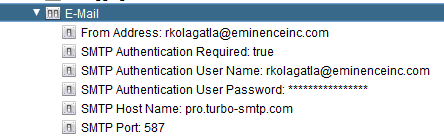
Composite Server -> Configuration -> E-Mail


5. Enter the following in each of the configuration parameters:

From Address: Any Valid E-Mail address
SMTP Authentication Required: True (Select True Check Box)
SMTP Authentication User Name: Enter your turboSMTP Username (the email address you have registered with your turboSMTP account)
SMTP Authentication Password:  Enter your turboSMTP Password (you will receive your password in your E-Mail)
SMTP Host Name: pro.turbo-smtp.com
SMTP Port: 587


6. Now your CIS server is configured to send E-Mails. There is a CIS in-built procedure SendEMail
PATH: /lib/util/SendEMail or /lib/resource/SendResultsInEMail which can now be used to send E-Mails from within CIS.


Monday, January 6, 2014

How to connect to a WSDL Data Source in CIS

In this article you will learn how to Add/Query a WSDL Data-Source. Follow this LINK to create a WSDL in Oracle 11g.

The newly created WSDL is:
http://localhost:8080/orawsv/TEST/GET_DESCRIPTION?wsdl

Let's see how to add a WSDL data source and get data from the REST data source.

1. LOGIN into Composite Studio with a user who has ACCESS_TOOLS Right.

2. Right-Click on a folder and from the drop-down list select 'New Data Source'


3. It opens up a pop-up window where you select the Data Source adapter. Select the WSDL adapter and click Next.


 4. After you click Next you will have to provide the following information for the new Data Source:
Data Source Name -  Provide any name you like
URL - http://localhost:8080/orawsv/TEST/GET_DESCRIPTION?wsdl
Login - test
Password - test
Hit - Create and Introspect

5. After you hit Create and Introspect a pop-up will open where you can select all the Services to Introspect
Click on GET_DESCRIPTIONservice and click Next and Introspect Task Status Report will open. Click Finish.


6. Now the web service operation is ready to be queried and can be used in Composite Views/SQL Scripts and in XSLT Transformations.

Sunday, January 5, 2014

How to connect to a REST Data Source in CIS

In this article I am going to show you how to connect and query a REST Data Source. To begin with I have created a REST web service on Oracle 11g XE (Express Edition). Follow this LINK to create a REST web service in Oracle 11g.

After you have created the REST web service you would end up with REST-Style URL's like this

REST URL:
1. http://test:test@localhost:8080/xml_demo/rest-ws/emp
2. http://test:test@localhost:8080/xml_demo/rest-ws/emp/7900

The first URL consists of three parts
1.1 USERNAME:PASSWORD - test/test
1.2 BASE URL - http://localhost:8080
1.3 OPERATION URL -  xml_demo/rest-ws/emp

The second URL consists of four parts
2.1 USERNAME:PASSWORD - test/test
2.2 BASE URL - http://localhost:8080
2.3 OPERATION URL -  xml_demo/rest-ws/emp
2.4 URL_PARAMETERS - this parameter is an employee id and this value can be substituted at run time.

Let's see how to add a REST data source and get data from the REST data source.

1. LOGIN into Composite Studio with a user who has ACCESS_TOOLS Right.

2. Right-Click on a folder and from the drop-down list select 'New Data Source'

3. It opens up a pop-up window where you select the Data Source adapter. Select the REST adapter and click Next.

4. After you click Next you will have to provide the following information for the new Data Source:
Data Source Name -  Provide any name you like
Base URL -  http://localhost:8080
Login -  test
Password - test
 Click on Operations '+' tab

After you click on '+' another pop-up will appear where you enter the operation name (each Base URL can have any number of operations)

Enter the Operation URL:
For the first operation enter: xml_demo/rest-ws/emp and
For the second operation enter: xml_demo/rest-ws/emp/{emp_id} where emp_id is an input parameter

For the Second URL after you enter the operations URL hit Parse and it will update the URL Parameters tab.

Click the Create & Close tab which creates the Data Source and two operations.
 
These two operations can now be used to create views and can also be used in SQL Scripts (procedures).